Quick start
Use Seedream 5.0 Pro in 4 steps
Start simple. Use one strong prompt, add reference images only when they have a clear role, and move to final export settings after the draft looks right.
Write a clear prompt
Describe the subject, scene, composition, style, and exact text you want in the image.
Upload references if needed
Use references for identity, product shape, visual style, layout, or editing context.
Choose output settings
Pick draft or export-ready settings, select aspect ratio, choose JPEG or PNG, then set max images.
Generate and export
Review the result, refine the prompt or edit target, then download the final image.
What Seedream 5.0 Pro is best for
Use it for product visuals, social images, poster concepts, information-heavy diagrams, multilingual text layouts, reference-based style transfer, and focused image edits where you need control over what changes and what stays fixed.
Key highlights
What you can do with Seedream 5.0 Pro
Use this section as a quick capability map before choosing the right workflow for your image task.
Workflow modules
Choose the right Seedream 5.0 Pro workflow
The best results come from matching the prompt structure to the task: create, edit, reference, or arrange multilingual information.
Text-to-image creation
Use Seedream 5.0 Pro when you need a new image from a brief: product hero, poster, social graphic, ad concept, diagram, or localized campaign visual.
Prompt pattern
Create a premium skincare product hero image for a green glass serum bottle on a marble counter, soft morning light, clean background, readable label text, commercial-quality style.
Precise image editing
Use image editing when the source image is already close. Describe the target area, what should change, and what must stay unchanged.
Prompt pattern
Keep the product, lighting, and camera angle unchanged. Replace only the background with a clean spring campaign scene. Preserve the shadow and label readability.
Reference-guided generation
Use references when a prompt alone is not enough. Assign each reference a job such as identity, product shape, pose, composition, texture, or visual style.
Prompt pattern
Use image 1 for the product shape, image 2 for the lighting style, and image 3 for the layout. Create one polished ecommerce banner with the same product identity.
Multilingual layout reasoning
Use this workflow for posters, labels, diagrams, and educational visuals that need exact image text, language-aware spacing, and structured information hierarchy.
Prompt pattern
Design a bilingual English and Japanese travel poster. Include the exact headline "Tokyo Night Market" and a smaller Japanese subtitle. Keep typography balanced and readable.
Before you generate
Plan the Seedream 5.0 Pro request before spending credits
A little planning improves consistency. Use these checks to decide what the prompt, references, resolution, and text instructions need to do before you generate.
Define the production job first
Before opening the generator, decide what the image must do. A product hero needs clean focus, accurate packaging, and space for copy. A poster needs hierarchy, text placement, and mood. A diagram needs structure, labels, and reading order. Seedream 5.0 Pro responds better when the prompt explains the job of the image, not only the visual style. Treat the first sentence like a creative brief: name the subject, the output type, the intended audience, and the business or communication goal.
Choose whether references are necessary
Do not upload references just because you have them. Use references when they control something important: identity, product shape, pose, style, color palette, layout, or lighting. If the prompt can describe the image clearly without a reference, start without one. If brand consistency, product accuracy, or character continuity matters, upload the reference and tell Seedream exactly what it should preserve. This avoids accidental style blending and makes the first result easier to judge.
Decide the draft path before final export
A good workflow usually starts with a smaller draft. Use 2K to test the idea, composition, text placement, and reference behavior. Once the direction is correct, switch to final export settings for the final image. This saves credits and prevents you from paying for high-resolution versions of weak concepts. The important checkpoint is not whether the image is already perfect; it is whether the subject, layout, and message are strong enough to refine.
Plan image text as layout, not decoration
If the image includes text, write the exact words before generation. Put headlines, labels, captions, and buttons inside quotes, then describe where they should appear. Text is part of the composition, so the model needs hierarchy: headline first, subtitle second, label small, callout near the object, or caption under the diagram. For multilingual visuals, name each language and explain how the typography should balance across the page.
1. Open the Seedream 5.0 Pro workspace
Start from the browser workspace. You do not need a local install or API key for the web flow. Choose Text To Image when you are creating from a blank prompt, or Image Edit when you want to modify an existing image.
Example instruction
Example: Create a clean high-quality ecommerce hero image for a matte green perfume bottle on a marble surface, soft morning light, premium skincare brand style.
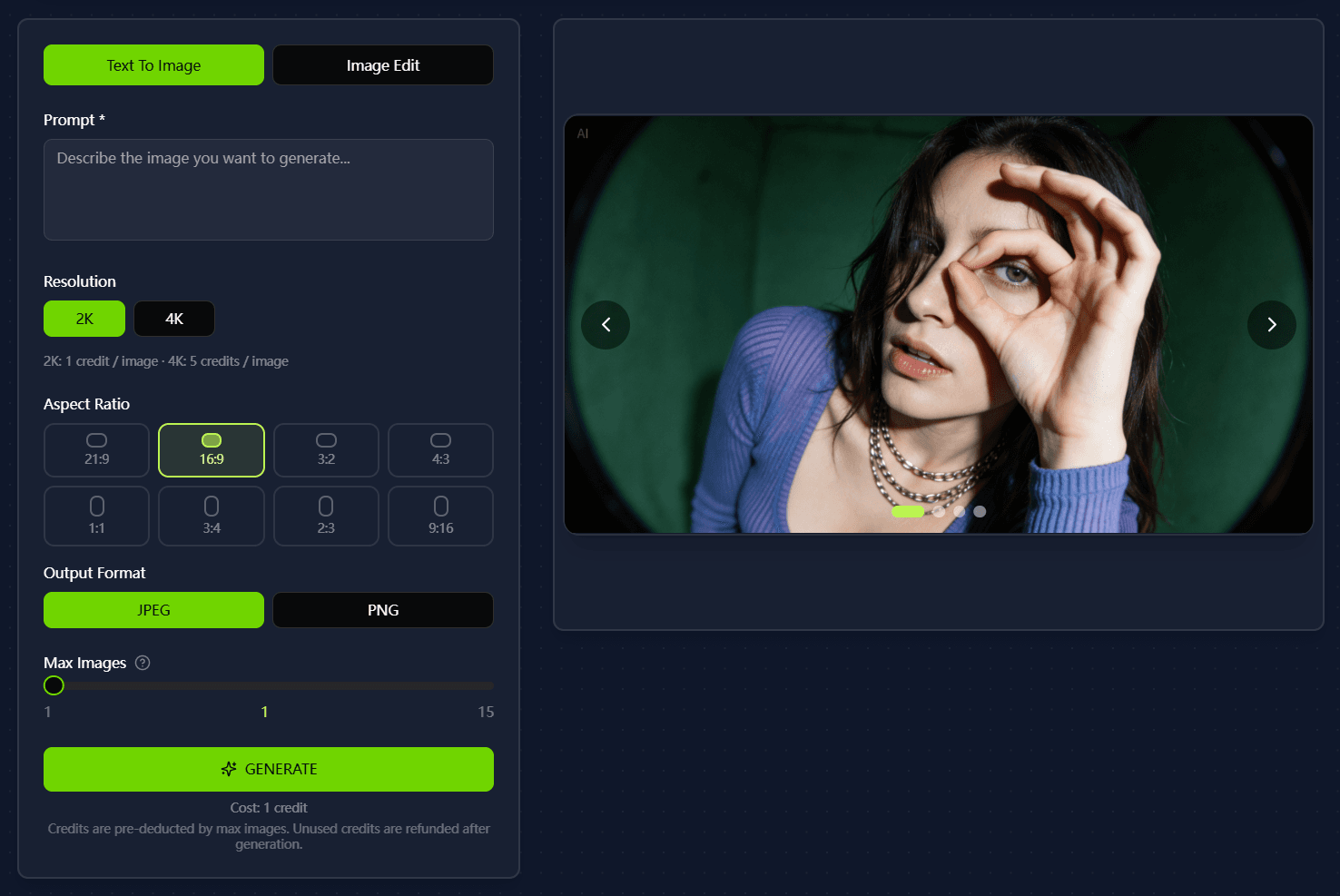
2. Write the prompt as a complete instruction
Seedream 5.0 Pro works best when the prompt reads like a short creative brief. Put the subject first, then describe scene, composition, lighting, style, exact text, and constraints.
Example instruction
Prompt pattern: [subject] in [scene], [composition], [style], [lighting], [exact text in quotes], [output goal].
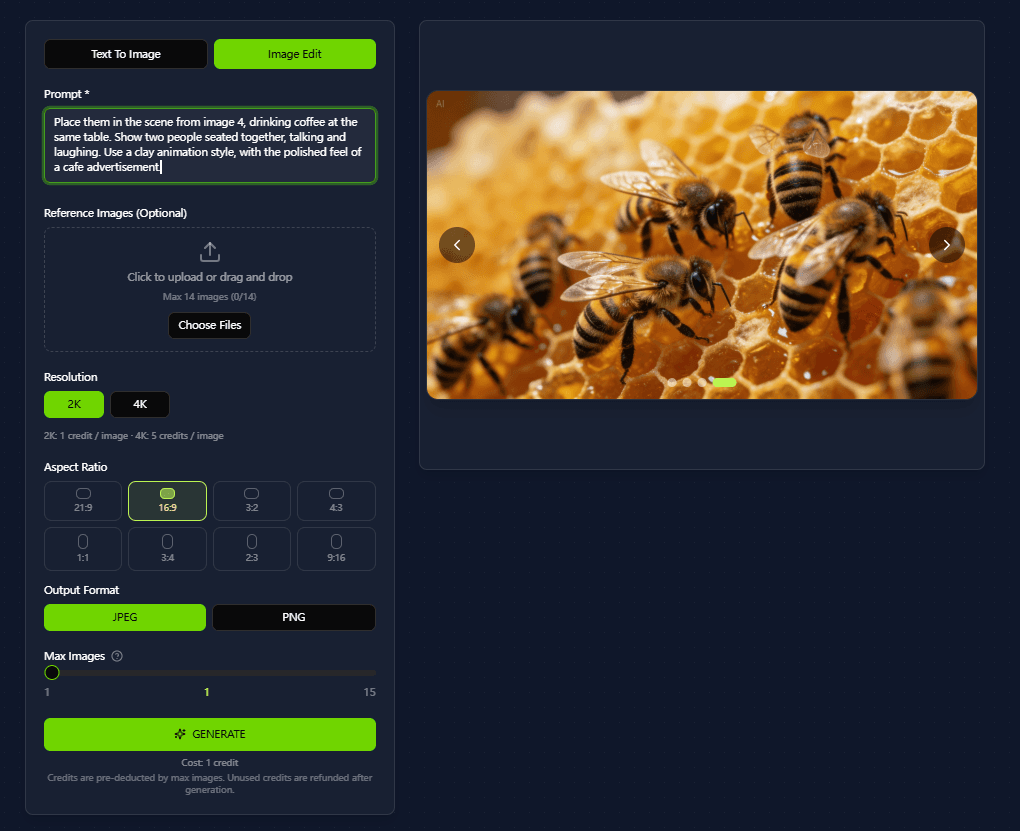
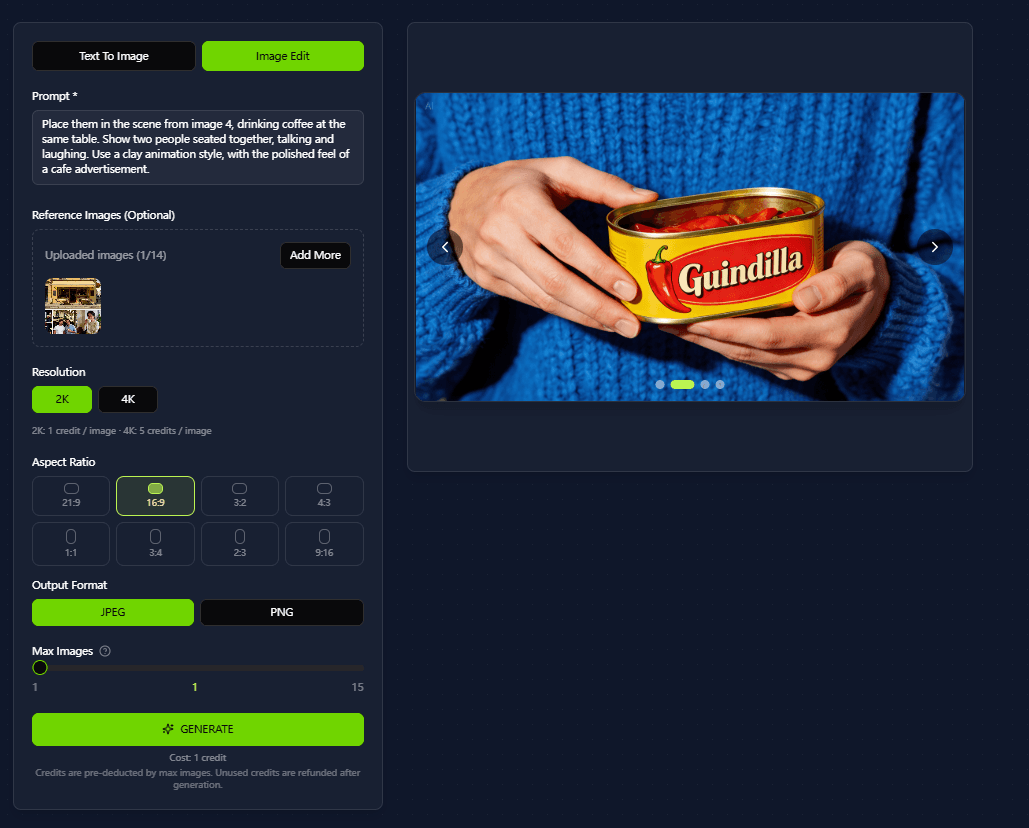
3. Tell every reference image what job it has
If you upload images, explain what each reference controls. A reference can guide identity, product shape, pose, color palette, style, layout, or the target edit area.
Example instruction
Example: Use image 1 as the product shape reference. Use image 2 for lighting style. Keep the label readable and place the product on a clean studio background.
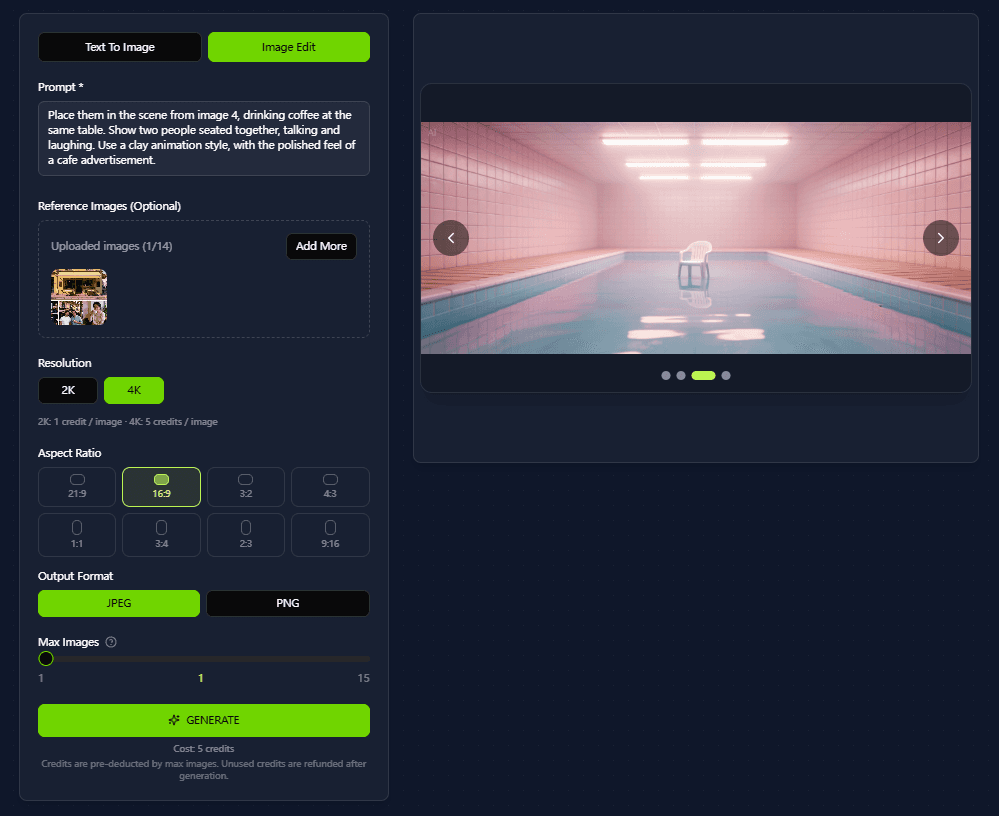
4. Set resolution, ratio, format, and image count
Use 2K when you need drafts or fast exploration. Use final export settings when you are making final output for ads, ecommerce, posters, client previews, or detailed information layouts.
Example instruction
Recommended start: 16:9, 2K, JPEG, 1 image. Switch to final export settings and PNG once the composition is approved.
5. Generate, inspect, refine, then export
After the first generation, inspect only the problems you can see. Refine one issue at a time: text, object placement, lighting, composition, or editing boundaries.
Example instruction
Refinement example: Keep the same product and lighting. Make the background cleaner, remove extra text, and preserve the shadow under the bottle.
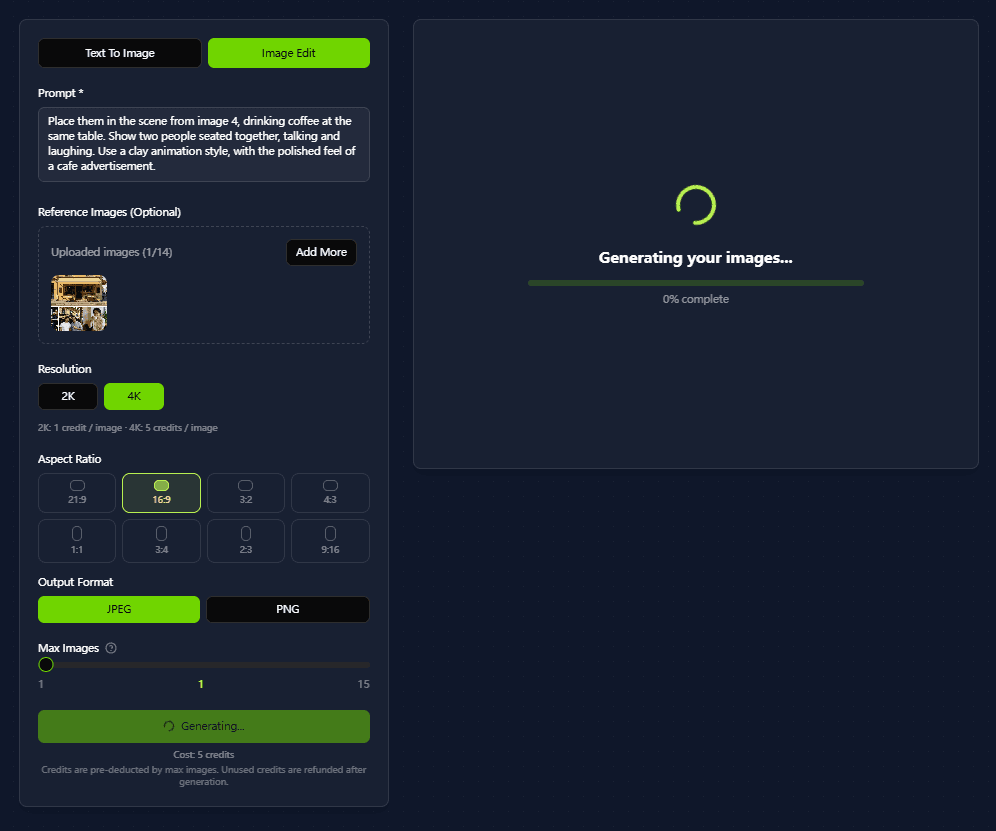
Settings reference
Seedream 5.0 Pro settings explained
These are the core controls in the browser workspace. Keep the first run conservative, then increase image count or resolution after you know the prompt works.
Version comparison
Seedream model version comparison
Use this table to understand how Seedream 5.0 Pro expands the workflow across text-to-image, editing, multi-image generation, and web search.
| Version | Positioning | Best For | Text-to-Image | Editing | Multi-Image | Web Search |
|---|---|---|---|---|---|---|
| Seedream 5.0 Pro | Knowledge and reasoning | Trending topics, information recognition, logical tasks | ||||
| Seedream 4.5 | Deep editing | Portraits, aesthetics, visual beauty, multi-image generation | - | |||
| Seedream 4.0 | High efficiency | Fast iteration, cost optimization, agile production | - | |||
| Seedream 3.1 | Artistic beauty | Cinematic quality, professional photography, precise styling | - | - | - | |
| Seedream 3.0 | Typography | Poster design, accurate text rendering, layout composition | - | - | - |
Comparing Seedream 5.0 Pro with other Seedream options?
If you are comparing Seedream 5.0 Pro alternatives or deciding whether Lite is enough, read the full Pro vs Lite comparison before choosing a production workflow for image editing, references, 2K drafts, and final exports.
Read Seedream 5.0 Pro vs Seedream 5.0 LiteBest practices
Practical tips for better Seedream 5.0 Pro results
Use these checks before generating a final export-ready image, especially when the task includes exact text, references, or client-ready layouts.
Start with one clear sentence, then add composition, style, lighting, exact text, and output goal.
Use 2K for fast drafts and switch to final export settings only after the composition and text direction are approved.
Give every reference image a role: identity, product shape, pose, layout, lighting, or style.
For image edits, state what should stay unchanged before describing the target change.
Add negative prompts only after you see a real problem in the generated image.
Review one issue at a time instead of rewriting the entire prompt after every generation.
Troubleshooting
Fix common Seedream 5.0 Pro output problems
When an image is close but not usable, diagnose the specific issue first. Then write a focused correction instead of replacing the entire prompt.
FAQ
How To Use Seedream 5.0 Pro FAQ
Short answers for the browser workflow, credits, prompt writing, and image editing.
Do I need an API key to use Seedream 5.0 Pro?
No. This guide focuses on the browser workflow. You can write a prompt, upload references, choose settings, and generate images from the website interface. That makes it useful for creators who want to test ideas, create drafts, and export finished images without managing model endpoints or local installation.
When should I use 2K instead of high-quality?
Use 2K for drafts, prompt testing, and quick variations. Use final export settings for final images that need more detail, sharper text, or production-ready output. A practical pattern is to explore in 2K, fix the prompt, confirm the composition, and then create the final export-ready version once the direction is approved.
How should I write prompts for image text?
Put the exact words inside double quotes. For example: Create a poster with the headline "Spring Sale". Add language, typography style, and layout instructions when needed. If there are several text elements, separate them by role: headline, subtitle, label, badge, chart caption, or call-to-action.
What should I do if the first result is close but not final?
Do not rewrite the whole prompt. Add one specific correction, such as fixing a text line, preserving a product shape, matching lighting, or changing only the marked area. When a result is close, the goal is to keep the working parts stable and revise only the visible problem.